.png)
Insights
September 2026 Advisor Newsletter
In this Issue: A year-end HSA checklist for clients & an advisor spotlight

What Multi-Factor Authentication (MFA) is, why myHSA added it for Plan Administrators, and how to log in with your authenticator app.
If you've logged into your myHSA account recently and been asked for a verification code, that's expected; there's nothing wrong with your account.
Multi-Factor Authentication (MFA) is a login step that confirms your identity in two ways instead of one. First, you enter your regular login credentials. Then, you enter a one-time verification code sent to you separately, by email or text message, before you can access your account. It's a simple, extra layer of protection. Even if someone got hold of your password, they'd still need access to your email or phone to get in.
Plan administrators and advisors both manage sensitive information on behalf of their company or clients, which is why MFA is mandatory for both groups.
MFA is currently optional for employees but encouraged, giving them an extra layer of protection when accessing their own benefit information. Across all three groups, MFA is designed to make sure only authorized users can access sensitive information, even if a password is compromised.
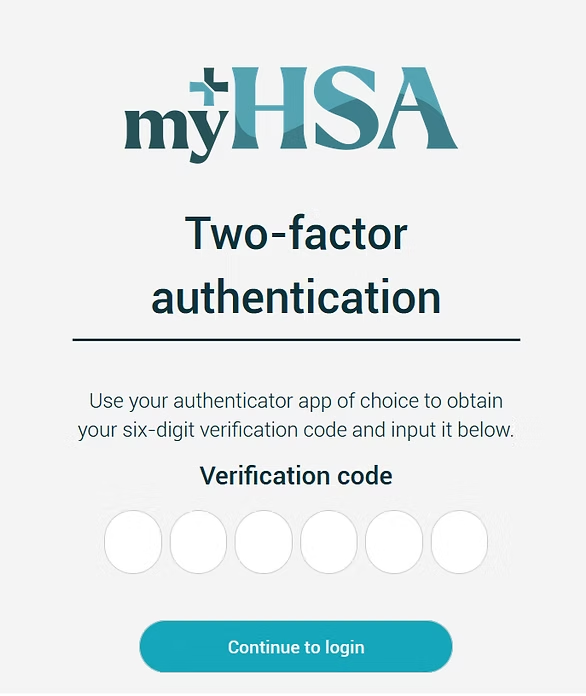
Logging in with MFA only takes a few extra seconds:
That's it. You'll only need to do this at login.
To enhance security, myHSA requires an Authenticator app for all Plan Administrators and Advisors, and email and phone MFA codes are no longer available for these account types. Employees may also set up an authenticator app, though it remains optional.
Follow these steps below to set up:
1. Initial Setup: After you have completed your regular Multi-Factor Authentication (MFA) login on myhsaaccess.com, you will be taken to a new screen. Here, you will see a QR code.
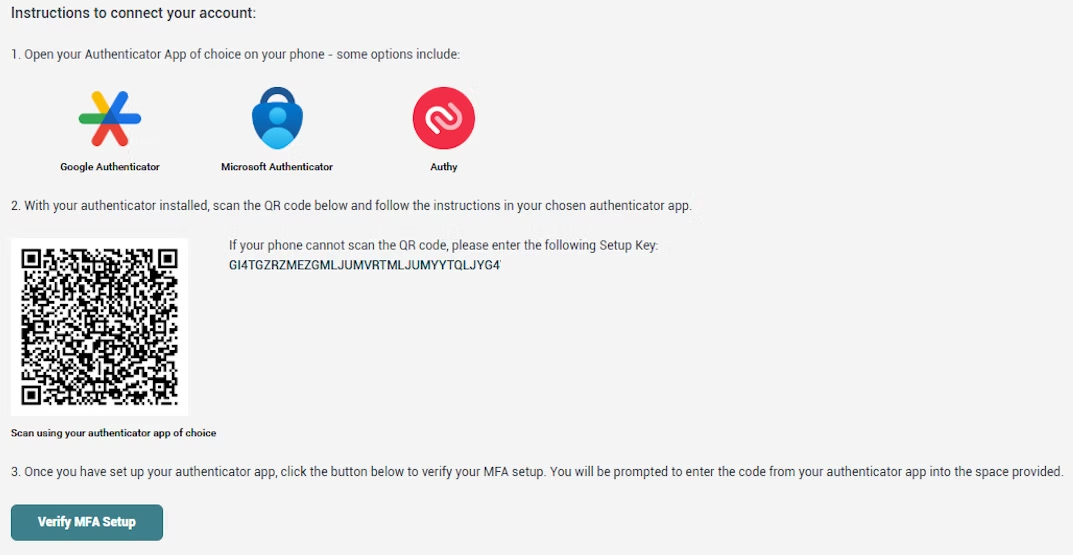
2. Scan the QR Code: Use the authenticator app of your choice to scan the QR code. Google Authenticator is a free option that works across different device types. Other options include Authy, Microsoft Authenticator, etc.
Please note: the QR code in the image above is an example and cannot be scanned. You will need to scan the unique QR code that is displayed on the page in your portal.
3. Confirm Setup: Click on the “Verify MFA Setup” button and enter the code from your Authenticator app. Once verified, you will see a confirmation screen indicating that the setup was successful.
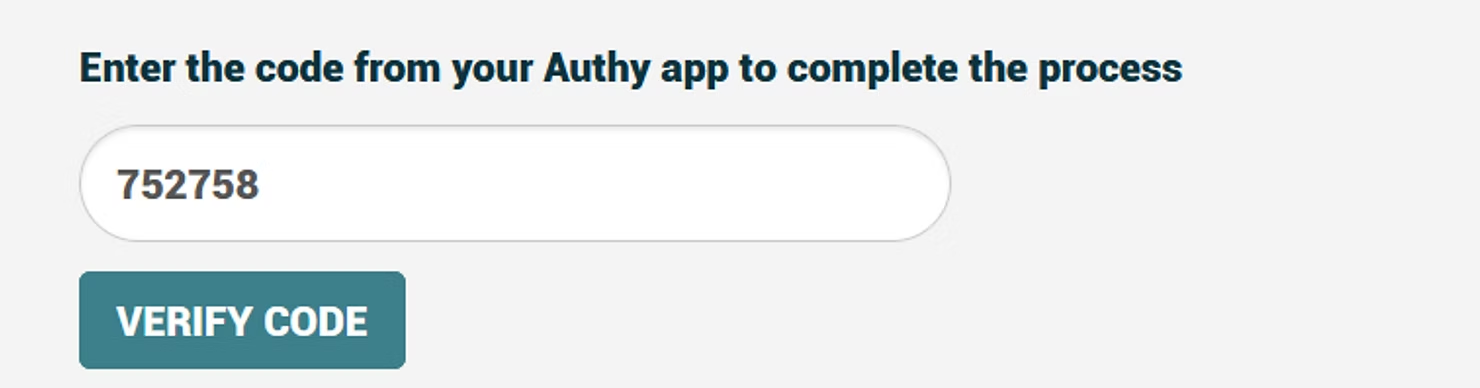
Please note that after setting up the Authenticator, the previous email and phone MFA options will no longer be available. This new process aims to strengthen our already robust security and protect users from having their information accessed by anyone else but themselves.
If you get a new phone or lose access to your old device, your authenticator app will no longer generate valid codes for your myHSA account because the connection is tied to the original device.
You cannot transfer or re-link the authenticator yourself. Contact the myHSA support team via live chat or at support@getmyhsa.com to have your authenticator connection reset. Once reset, you can complete the setup steps above on your new device.
If you're having issues or something doesn't look right during login, our support team is here to help. Reach out to support@getmyhsa.com or start a live chat, and we'll get you back into your account.
Multi-Factor Authentication adds one small step to your login and one big layer of protection for your company's data. It's a simple trade-off for a more secure account, and it's just one of the ways we're working to keep myHSA safe for everyone who relies on it.
Expert insights on flexible benefits, employee retention, and CRA-compliant plans in Canada.
In this Issue: A year-end HSA checklist for clients & an advisor spotlight

Discover why Canadian small businesses are switching to Health Spending Accounts: 100% tax-deductible, flexible, and easier to manage than group insurance.
What Multi-Factor Authentication (MFA) is, why myHSA added it for Plan Administrators, and how to log in with your authenticator app.

Are health and fitness apps eligible under an HSA in Canada? The short answer? Generally, no. Read more to learn why.